
A halftone is the oldest trick in print. You can't print grey with black ink, so you print dots instead, big ones where it's dark and tiny ones where it's light, and from a normal distance your eye blends them back into a smooth picture. Every newspaper photo, comic and old magazine you've ever seen was made that way.
Now the dots are the point. A halftone effect makes a flat photo look printed, and there are more halftone generators than ever to do it. I've been a graphic designer for fifteen years and spent a lot of that time making things look like they came off a press, so here are the nine halftone apps and filters I'd actually point people to, free and paid.
One thing to be upfront about: number three on this list, Overprint, is a halftone generator I made. I've tried to be fair to everything else on here, and I've said where the others do things better.
The best halftone generators at a glance
| Tool | Best for | Price | Runs on |
|---|---|---|---|
| 1. Photoshop | Full control and print production | About $23 a month | Mac, Windows |
| 2. Procreate | Halftone on the iPad | $12.99 once | iPad |
| 3. Overprint | Realistic CMYK prints in the browser | Free, Pro $19 once | Any browser |
| 4. Affinity | A free Photoshop alternative | Free | Mac, Windows |
| 5. Halftone Maker | Odd shapes, SVG and video | Free, paid plans | Any browser |
| 6. GIMP | Free CMYK separations | Free | Mac, Windows, Linux |
| 7. Krita | Illustrators and comic artists | Free | Mac, Windows, Linux |
| 8. MagicPattern | A quick one-colour halftone | Free | Any browser |
| 9. Rasterbator | Giant wall posters | Free | Any browser |
What makes a good halftone generator
Most halftone filters do the same basic thing, so the differences are in the details. These are the ones I look at.
Dot shape and size. Round dots are the classic, but lines, squares, diamonds and ellipses all give a different feel. You also want to set the dot size yourself, because the right size depends completely on how big the final thing is.
Colour. A one-colour halftone is easy. A real colour halftone splits the picture into cyan, magenta, yellow and black and screens each one at its own angle, which is where the rosettes and that printed-magazine look come from. A lot of free halftone tools skip this and just tint a single screen.
Resolution. A halftone that looks great on screen can be useless for print if it only exports at 1000 pixels. For a print, think about 300 dpi at the size you're printing.
Vector or pixels. For screen printing, laser cutting and big signs, SVG output is gold, because the dots stay sharp at any size. For everything else, a big PNG is fine.
Texture. Real printing isn't perfect. Inks spread, plates don't quite line up and paper has grain. The halftone effects that look the most convincing fake some of that. The ones that don't can look a bit too clean, which is great for graphic work and less great if you want it to feel printed.
1. Adobe Photoshop
Photoshop is still the standard, and it has two halftone tools most people don't realise are different.
The one everyone knows is Filter > Pixelate > Color Halftone. You set a maximum dot radius (from 4 to 127 pixels) and a screen angle for each channel, and it turns each channel into round dots. It's quick and it's fine for a pop art look, but it only does round dots and you don't get much else to play with.
The proper one is hidden in the colour modes. Convert an image to Grayscale, then go to Image > Mode > Bitmap and choose Halftone Screen. Now you can set the frequency in lines per inch, the angle, and the shape: round, elliptical, line, square, cross or diamond. This is how a lot of screen printers have prepped their separations for years, because the output is pure black and white, ready to print onto film.
The catch is that it's all very manual. A good CMYK halftone in Photoshop means splitting the channels, screening each one and putting it back together, or buying a plugin or action set to do it for you.
Price: About $22.99 a month for Photoshop on its own on an annual plan, or $19.99 a month in the Photography plan with Lightroom.
Good: Total control, print-ready bitmap halftones, every shape you need.
Not so good: A subscription, and a good colour halftone takes a lot of steps.
2. Procreate
If you draw on an iPad, you already have a good halftone app. Procreate's Halftone sits under Adjustments > Halftone and has three modes. Full Color keeps the colours of your artwork behind the dots. Screen Print does a colour halftone with white showing through, like a print on paper. Newspaper does a greyscale halftone.
You drag across the screen to change the dot size and that's about it. That simplicity is the point. It's great for adding halftone shading to an illustration, especially on a layer you've already painted, and because it's an adjustment you can use it on any layer, not just a photo.
It won't give you control over the angles or the dot shape, so for anything that needs to match a real print process you'll want something else. There's a version in Procreate Pocket on the iPhone too.
Price: $12.99, one time, no subscription.
Good: Built in, fast, works on any layer.
Not so good: Round dots only, very few settings, iPad only.
3. Overprint
Full disclosure again, this is mine. I built Overprint because every online halftone generator I tried made a halftone that looked like a filter, not like a print. I wanted the bit in between, where you can see the ink.
It works like a real press. Your photo is split into cyan, magenta, yellow and black plates, each plate is screened at its own angle, and the inks are overprinted on the paper the way transparent process inks are, so you get proper rosettes and the colours mix in the dots. Then there are the things that make it feel printed: misregistration (the plates slightly out of line), dot gain, ink soaking into the paper, rough dot edges, mottle and paper grain.
There are ready-made looks to start from, like Comic, Magazine, Billboard, Misprint and a mezzotint, and everything is a slider, so you can push it from clean magazine to badly printed flyer. It runs in your browser, nothing to install, and your photos never leave your computer.
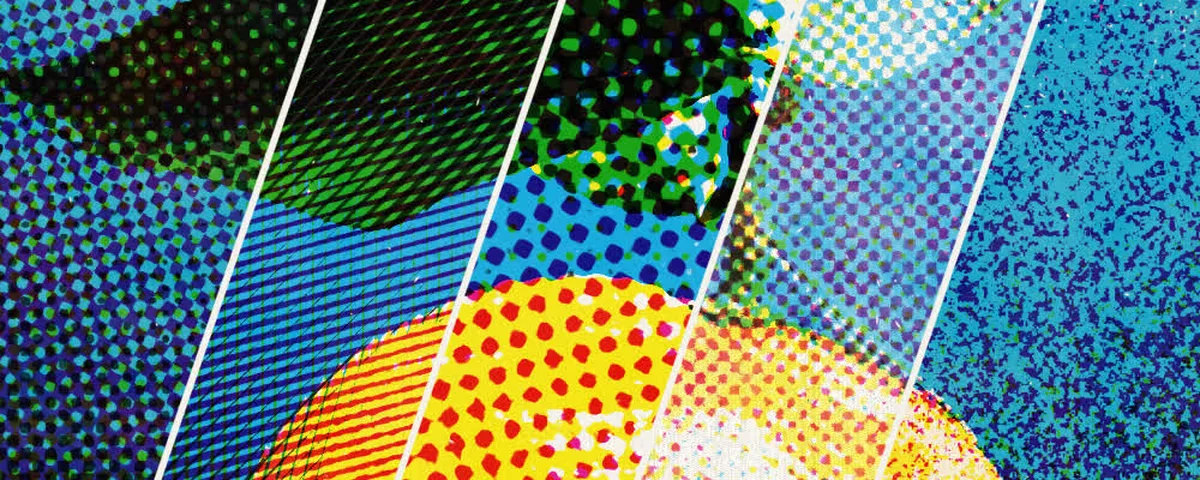
fig.1: One photo through Overprint's five free looks, from Comic to Mezzotint.
Overprint is free to use with dot, line and grain screens in full CMYK, and you can download an 800 pixel PNG. A free account adds one print-size export a week. Overprint Pro is $19 once. It unlocks print-size PNGs whenever you want (up to 4800 pixels, about 16 inches at 300 dpi), eight more patterns (ellipse, diamond, square, crosshatch, wave, zigzag, engraved and ripple lines), duotone and one-ink modes, your own ink colours and the Pro recipes.
Where it falls short: it only exports PNG, so if you need an SVG for a vinyl cutter or a screen printer who wants vectors, Halftone Maker below is better. It also works on one photo at a time, with no layers.
Price: Free. Overprint Pro is $19 once.
Good: The most realistic printed CMYK look here, live sliders, private, no install.
Not so good: PNG only, no vector output.
4. Affinity
Since Canva made Affinity free, it's the easiest free answer to "how do I do this without Photoshop". The Halftone filter is under Filters > Colors > Halftone in the photo tools, and it's better than you'd expect. You get standard colour halftones, plus line and circular screens in one colour, with a cell size slider, screen angle and contrast. The preview is full size and live, which Photoshop's Color Halftone still isn't.
Because it's a full design app you can then take the result straight into a layout or a vector design in the same program. The core tools, including the filters, are free. Only Canva's AI features need a paid Canva plan, and you don't need them for halftones.
Price: Free.
Good: A proper desktop app with a decent live halftone filter, for nothing.
Not so good: Fewer dot shapes than Photoshop's Bitmap mode, and it means installing a full design suite.
5. Halftone Maker
Halftone Maker is the one to go to when you want something that isn't a dot. It has circles, squares, triangles, stars, emoji, blobs and your own SVG shapes, laid out on square, hexagonal, radial or ring grids, plus stippling (the dotwork style tattooists and illustrators use) and line halftones.
Two things set it apart. It exports SVG, so the result is a real vector you can scale for screen printing, cutting or engraving. And it does video, turning short clips into animated halftones. It also does RGB and CMYK separations and gradient maps, and the images are processed in your browser rather than uploaded.
There are so many options that it can be a lot to take in, and the free version caps the canvas size and the video length.
Price: Free to use, including commercially. Paid plans add a bigger canvas and longer video.
Good: SVG export, huge choice of shapes, video.
Not so good: Busy interface, and it looks more digital than printed.
6. GIMP
GIMP's halftone filter is called Newsprint, and it's under Filters > Distorts > Newsprint. It's one of the most capable free halftone filters going. You can pick black on white, RGB or CMYK, and for each ink you set the pattern (line, circle, diamond, square or crossing lines), the period (how big the dots are) and the angle. There's even a black pullout setting, which decides how much of the dark tones go to the black plate instead of the colour inks, the way a real CMYK separation works.
So you can get a proper CMYK halftone with real screen angles, for free. It's just that GIMP doesn't make it friendly. The preview can be slow on big images and the settings assume you know what a period and a pullout are.
Price: Free and open source.
Good: Real per-ink angles and patterns, CMYK, no cost.
Not so good: Fiddly and slow on large files.
7. Krita
Krita is a free painting app, and a lot of comic artists use it for exactly this. The Halftone filter is under Filters > Artistic > Halftone. Intensity mode makes a black and white halftone like a newspaper, Independent Channels screens each colour channel on its own like a magazine, and there's an Alpha mode that halftones just the transparency, which is a lovely way to fade the edges of a drawing into dots.
The pattern comes from Krita's fill layer generators, such as the screentone generator, so you can set it up as a non-destructive layer and tweak it later. You can also change the foreground and background colours and how hard the edges of the dots are.
Price: Free and open source.
Good: Made for drawing, non-destructive screentones.
Not so good: Less suited to turning photos into colour prints.
8. MagicPattern Halftone Generator
MagicPattern's halftone generator is the quickest thing on this list. Upload a JPG or PNG, pick a preset (newsprint, comic, sepia, pop art or risograph), and adjust the dot size, sharpness and angle. You choose one ink colour and one paper colour and download a PNG. No sign-up, and you can use the result commercially.
It's one ink only, so you won't get a colour halftone out of it, and there aren't many settings. But for a quick duotone-ish halftone for a social post or a slide, it does the job in about ten seconds.
Price: Free.
Good: Very fast, nice presets, no account.
Not so good: One colour, few settings, PNG only.
9. Rasterbator
This one does something different. Rasterbator turns a photo into a huge halftone poster that you print on ordinary paper at home, page by page, and tape together on the wall. You pick the paper size, how many pages wide it should be, the halftone style and the colours, and it gives you a multi-page PDF with crop marks.
It's free, it runs in the browser and the photos stay on your device. Big dots are exactly what you want at that size, because you look at a wall poster from across the room, so the halftone turns back into a picture.
Price: Free.
Good: Giant posters from a normal printer.
Not so good: Not really for anything else.
Which halftone app should you use?
For screen printing, you need one colour per screen and sharp dots. Photoshop's Bitmap mode is the old reliable, and Halftone Maker is the free option, since it gives you SVG. Keep the dots big enough for your mesh to hold. Most printers will tell you their line count if you ask.
For prints and posters that should look like they came off a real press, I'd use Overprint, then GIMP if you'd rather do it all by hand. Either way, export at the size you're printing.
For illustration and comics, Procreate on the iPad or Krita on a computer, because you can put the halftone on a single layer.
For something quick for social media, MagicPattern or Overprint's free download are both plenty.
Tips for a better halftone effect
Size the dots for the distance. Newspapers were traditionally printed at around 85 lines per inch and glossy magazines at 133 to 150. For a halftone effect you want people to notice, go much coarser than that, so the dots are clearly visible at the size someone will actually see it.
Get the angles right. The traditional CMYK screen angles are cyan 15°, magenta 75°, yellow 0° and black 45°. Put two strong inks at the same angle, or close to it, and you get moiré, that wobbly interference pattern. Sometimes moiré is the look you want, but it should be on purpose.
Push the contrast first. Halftones flatten out the midtones, so a photo that looks fine can come out grey and muddy. Add a bit of contrast before you screen it and the dots will have much more snap.
Leave some mess in. If it's meant to look printed, a little misregistration and grain goes a long way. Perfect halftones look like a filter. Slightly wrong ones look like a print.
Frequently Asked Questions
What is the best free halftone generator?
For a free halftone generator in the browser, Overprint gives you a full CMYK halftone with real print texture, and Halftone Maker has the most dot shapes and SVG export. If you'd rather install something, GIMP's Newsprint filter and Affinity's Halftone filter are both free and do proper colour halftones.
How do I add a halftone effect to a photo?
Open the photo in a halftone generator, pick a dot shape, set the dot size and the screen angle, then export. In Photoshop it's Filter > Pixelate > Color Halftone. In Procreate it's Adjustments > Halftone. In an online halftone generator like Overprint you drop the photo in and the effect is applied straight away.
What screen angles should a CMYK halftone use?
The usual angles are cyan 15°, magenta 75°, yellow 0° and black 45°. Keeping the strong inks 30° apart stops them forming a moiré pattern, and yellow goes at 0° because it's the lightest ink and its pattern is the hardest to see.
What's the difference between halftone and dithering?
A halftone uses a regular grid of dots, lines or other shapes that grow and shrink to make lighter and darker tones. Dithering scatters same-sized dots or pixels, and changes how many there are rather than how big they are. Halftones look like printed magazines and comics; dithering looks more like early computer graphics.
Which halftone generator is best for screen printing?
For screen printing you need one colour per screen, at full size, with dots big enough to hold on the mesh. Photoshop's Bitmap mode with a halftone screen is the industry standard, and Halftone Maker is a good free option because it exports SVG, so the dots stay sharp at any size.